TrackSync cannot see my timeline.
Make sure a Resolve timeline is open, then restart Resolve and open TrackSync from Workflow Integrations again.
 TrackSync
Buy now
TrackSync
Buy now
Documentation
Install TrackSync, open it inside DaVinci Resolve Studio, sync audio with video from the active timeline, and create a new synced timeline without XML exports.
If macOS still asks for confirmation, right-click the installer, choose Open, and confirm that you want to open it.
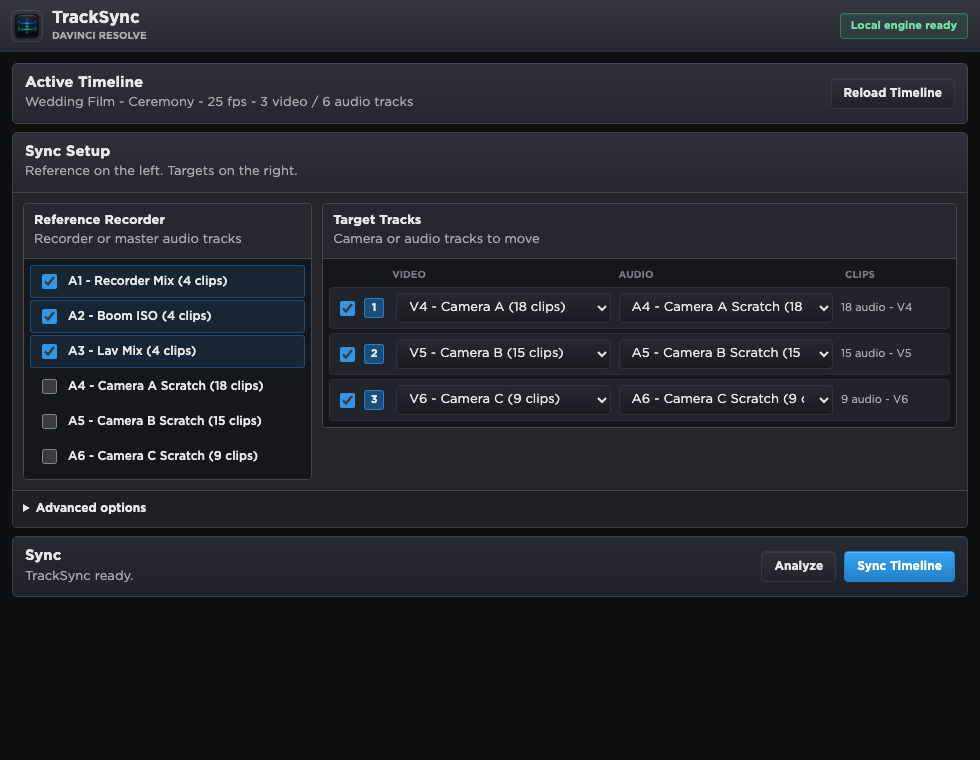
| Track | Use | Example |
|---|---|---|
| A1-A3 | Recorder reference tracks | Recorder mix, boom ISO, lav mix |
| V4 + A4 | Camera target 1 | Camera A picture and scratch audio |
| V5 + A5 | Camera target 2 | Camera B picture and scratch audio |
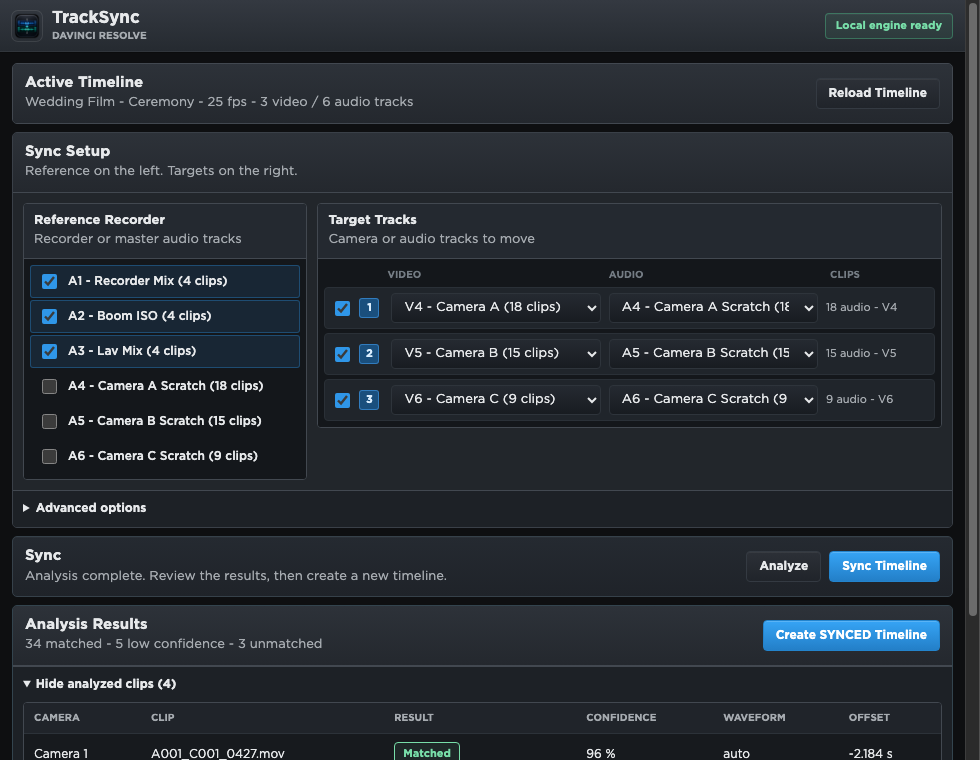
TrackSync creates a new timeline with a synced suffix. The original timeline is left unchanged.
Make sure a Resolve timeline is open, then restart Resolve and open TrackSync from Workflow Integrations again.
TrackSync leaves weak matches visible instead of moving them blindly. Check whether the camera scratch audio is noisy, very short, or from a different take.
Waveform analysis runs locally on your Mac. Media and waveform cache are not sent to TrackSync servers. Only license activation and validation data are sent to the TrackSync licensing service.
Connect to the internet and reopen TrackSync, or paste your license key again. Offline use works for 7 days after the last successful license validation.